

Which Version of Outlook Are You Actually Using? A Guide for Small Businesses
It Sounds Simple, But Most Small Businesses Get This Wrong
If I ask a business owner what version of Outlook they use, nine times out of ten I get a shrug or a guess. “The newest one” or “365” or “the one that came with my computer.” That used to be fine. But Microsoft has made the Outlook landscape confusing enough that it actually matters now, and getting it wrong can cause real problems for your team.
Let me walk you through what is out there, how to figure out what you are running, and why you should care.
The Four Versions of Outlook You Might Be Using
Right now, there are essentially four different versions of Outlook floating around in the wild. They look similar but behave very differently under the hood.
-
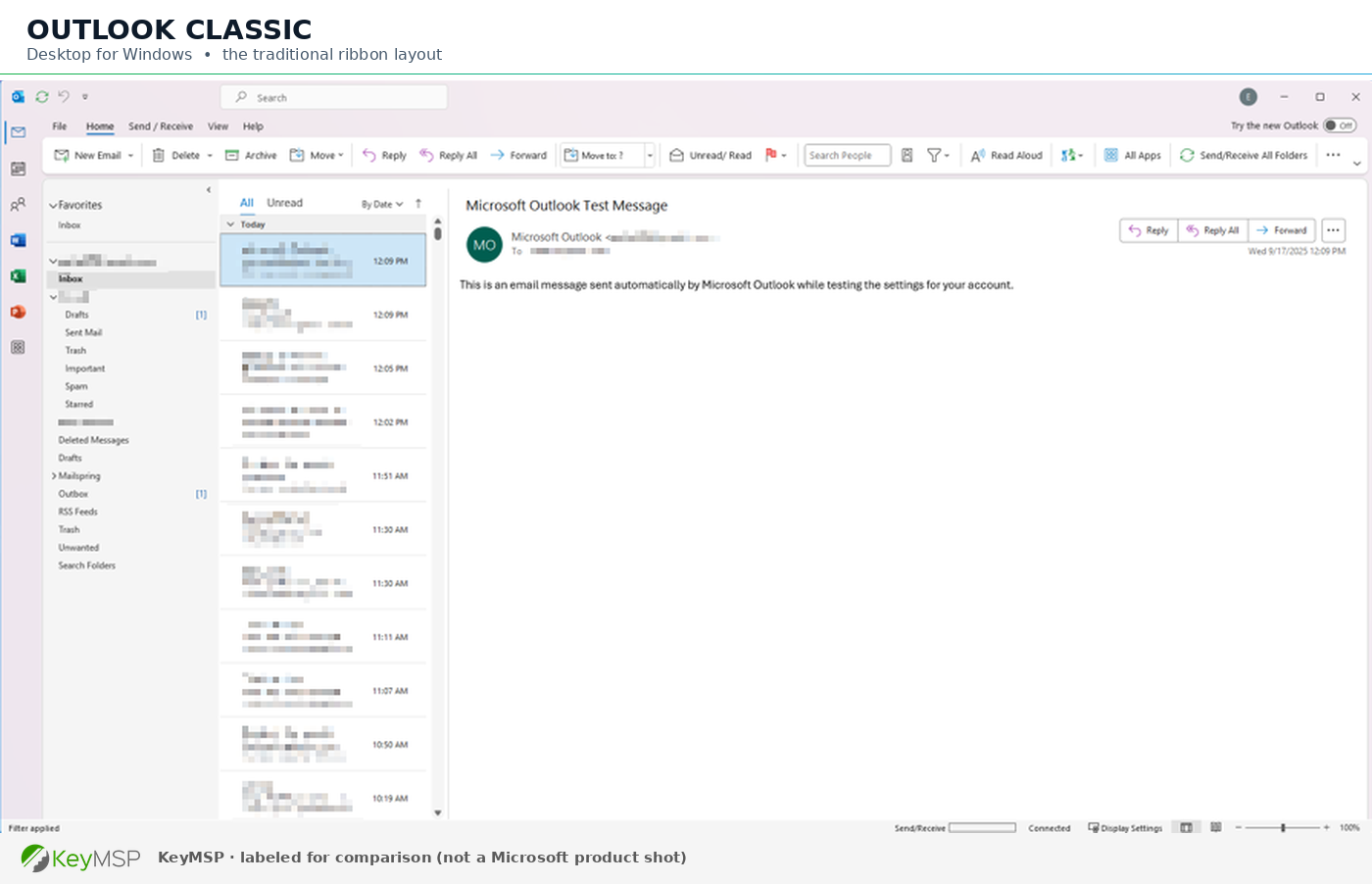
Outlook (classic desktop app): This is the traditional, full-featured Outlook that has been around for years. It comes with Microsoft 365 subscriptions and older Office licenses. It is the version most businesses are familiar with.
-
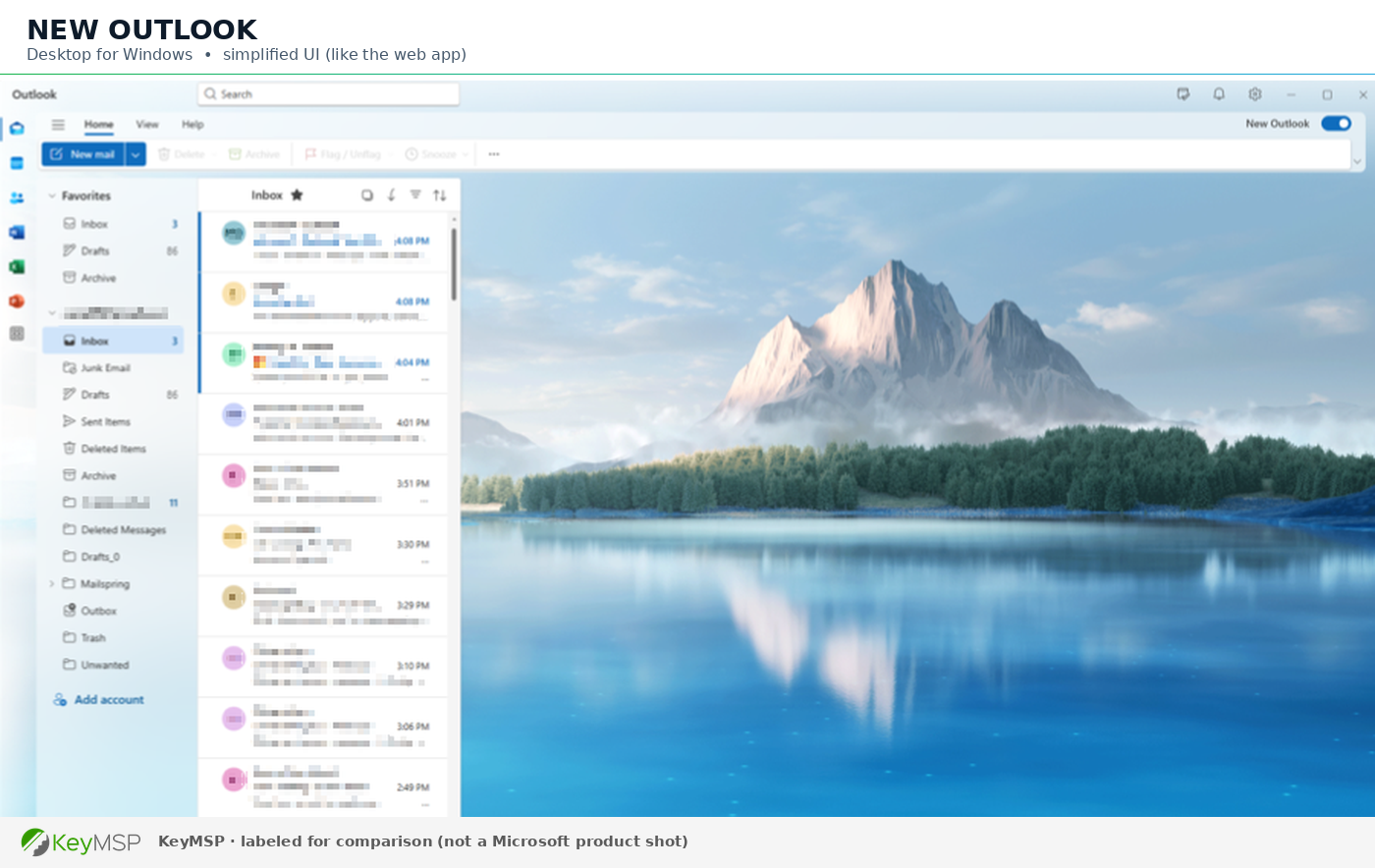
New Outlook for Windows: Microsoft has been pushing this replacement for the classic app. It looks cleaner, but it is missing features that many business users depend on. If you saw a toggle in the top right corner that says “Try the new Outlook,” this is what it leads to.
-
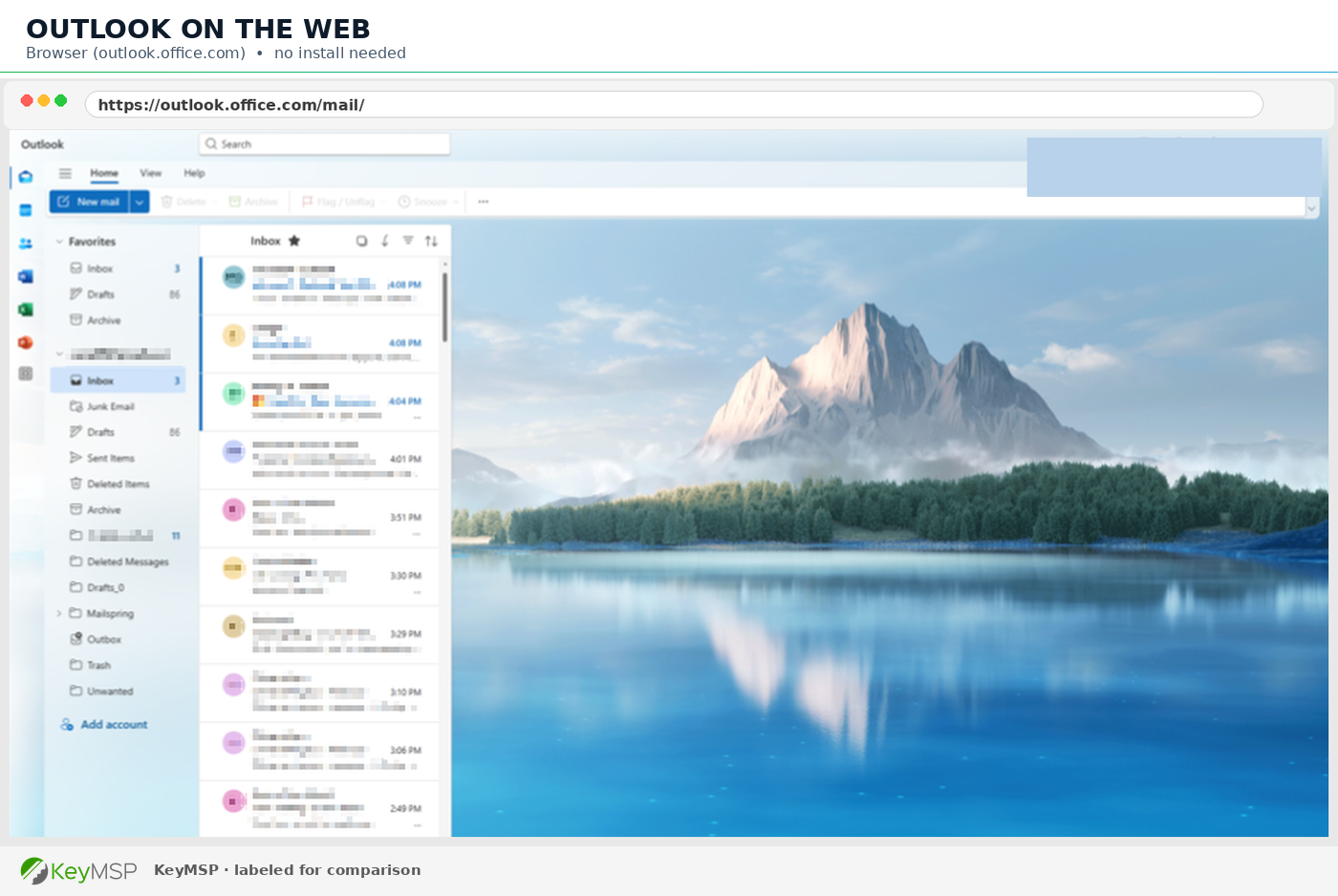
Outlook on the web (OWA): This is the browser version you get when you log in at outlook.office.com. It is solid for quick access but is not a full replacement for the desktop app.
-
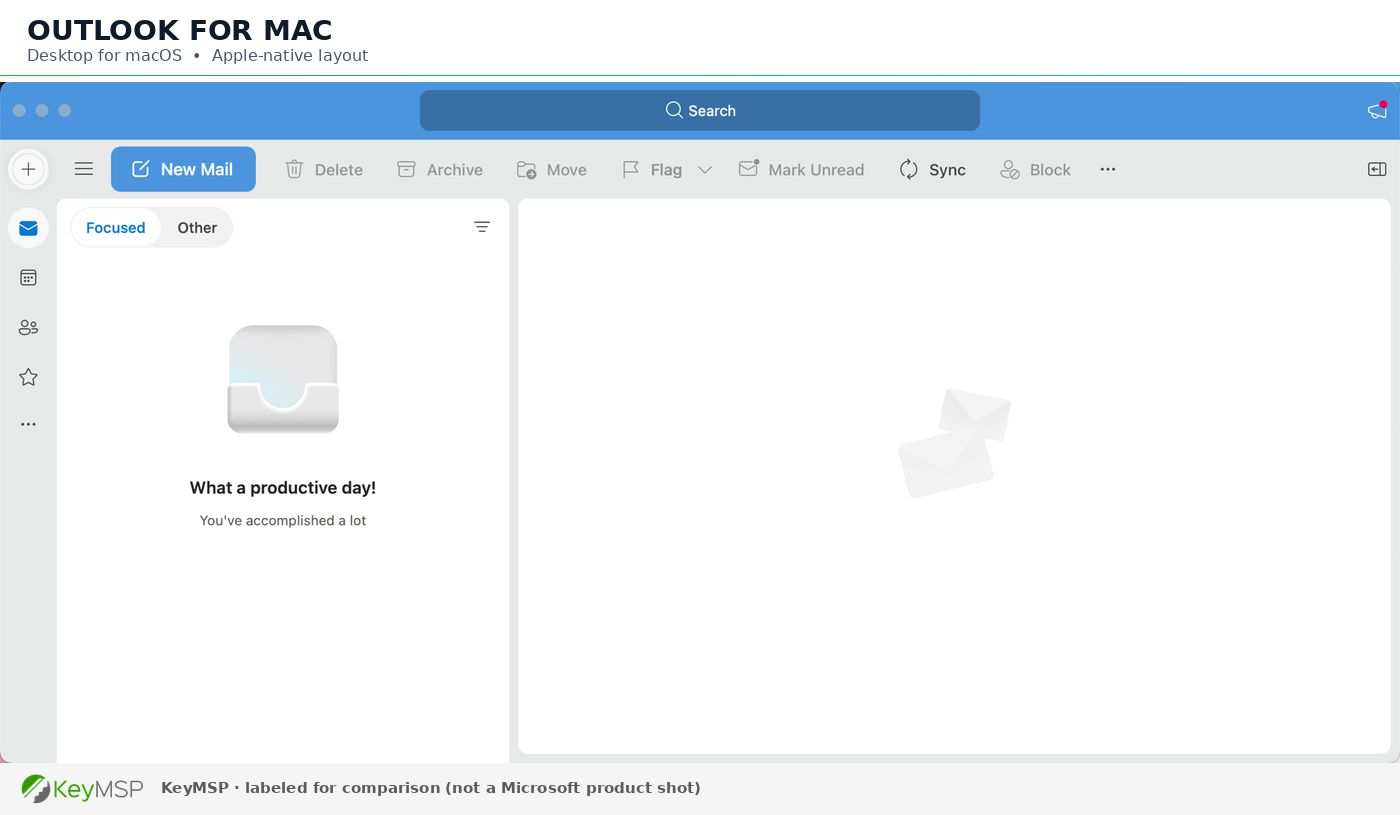
Outlook for Mac: A separate application entirely, with its own feature set and its own quirks. If you have Mac users on your team, they are living in a different world than your Windows users.
-
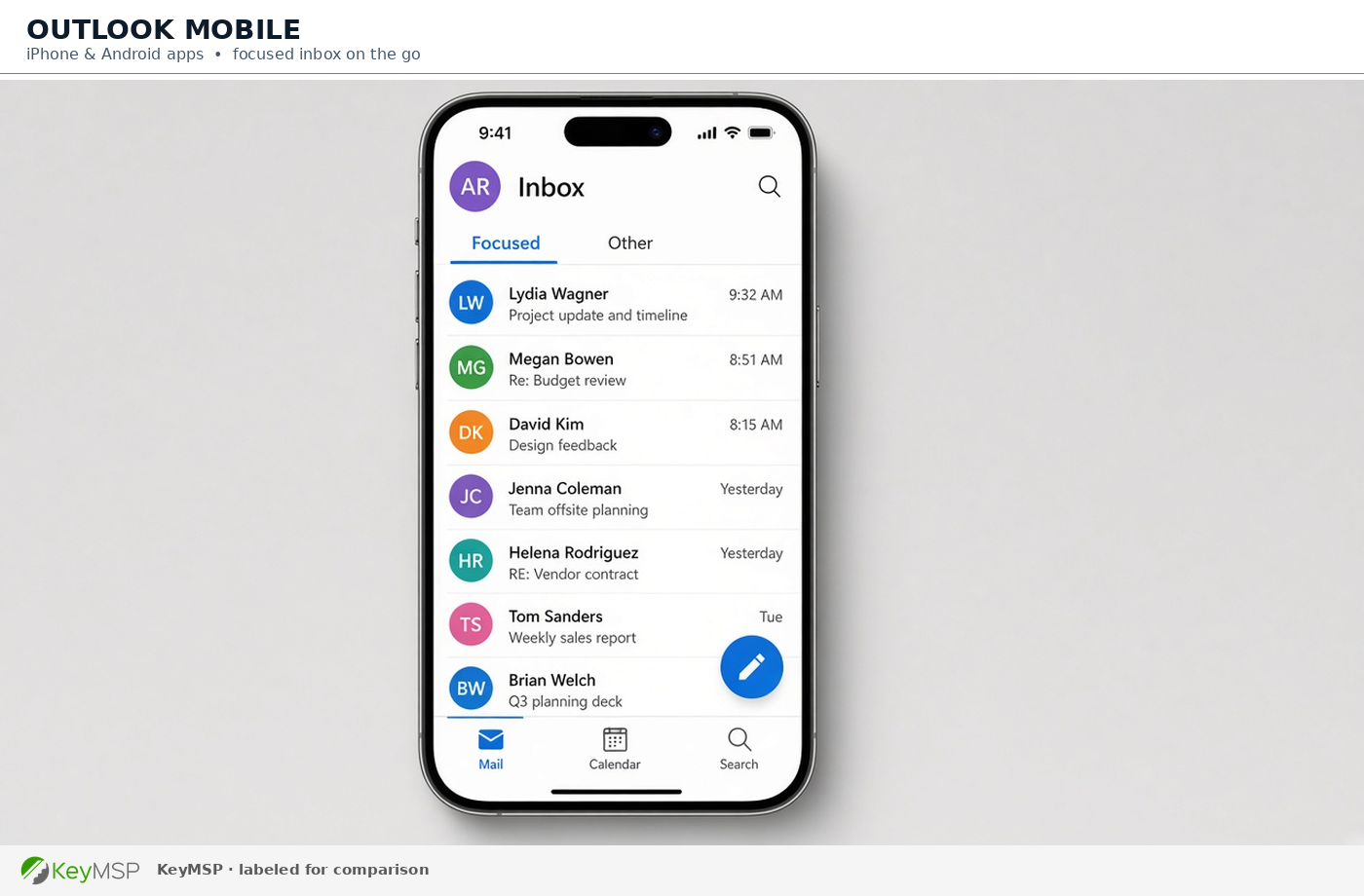
There is also Outlook Mobile, which most teams already have on phones and tablets.
How to Check Which Version You Are Running
On Windows, open Outlook and go to File, then Office Account (or About Outlook). You will see the version number and whether you are on the classic or new app. The new Outlook has a simpler, more web-like interface. If you are not sure, look for that toggle switch in the upper right corner. If it is there, you are still on classic and have not switched yet.
If you do not see a File menu at all and everything looks like a web page, you are probably using New Outlook or the browser version.
Why This Actually Matters for Your Business
Here is where it gets practical. The version of Outlook your team runs affects several things that matter day to day:
-
Shared mailboxes and delegates: The new Outlook handles shared mailboxes differently than classic. Some delegation features are limited or missing entirely.
-
Add-ins and integrations: If your team uses CRM plugins, email tracking tools, or compliance add-ins, many of those only work in classic Outlook. Switching to new Outlook can break them silently.
-
Offline access: Classic Outlook stores email locally. New Outlook relies more heavily on cloud connectivity. If your internet goes down, the experience is very different.
-
Search and performance: Some users find new Outlook faster. Others find classic more reliable for searching large mailboxes. It depends on your setup.
-
Support and troubleshooting: When something breaks, knowing which version you are on is step one. We have seen tickets drag on because nobody could confirm what the user was actually running.
What We Recommend
For most small businesses, we still recommend sticking with classic Outlook on Windows for now. It is more mature, better supported by third-party tools, and more predictable. Microsoft is slowly forcing the transition to new Outlook, so this will not last forever, but there is no reason to rush it.
If you are on Microsoft 365 Business Premium or Business Standard, you have access to both versions. Just make sure your team is not accidentally switching between them, because that causes confusion fast.
For Mac users, stay current with updates and test any shared mailbox or calendar workflows carefully. The Mac version has improved, but it still handles some things differently than Windows.
Need Help Sorting This Out?
If you are not sure what your team is running, or if you have had weird email issues that nobody can explain, this is a good place to start. We help San Diego businesses get their Microsoft 365 environments cleaned up and standardized so that everyone is on the same page.
Reach out to KeyMSP and we will take a look. No pressure, no sales pitch. Just a straight answer about where things stand.